Terraform Diagram Generator
Visualize Terraform infrastructure. Describe your diagram in plain English below — free, no account needed. Output stays editable as draw.io XML and can be exported as SVG or PNG after signup.
Export anywhere
Copy the draw.io XML and import it into diagrams.net, draw.io desktop, or Confluence.
Edit visually
Click "Save & Edit Diagram" to open the result in AIDrawIO — drag, restyle, and re-prompt with better models.
Upgrade for more
One free preview a day here. Sign up for 3 free diagrams, editing, and SVG/PNG export.
See it in action
Example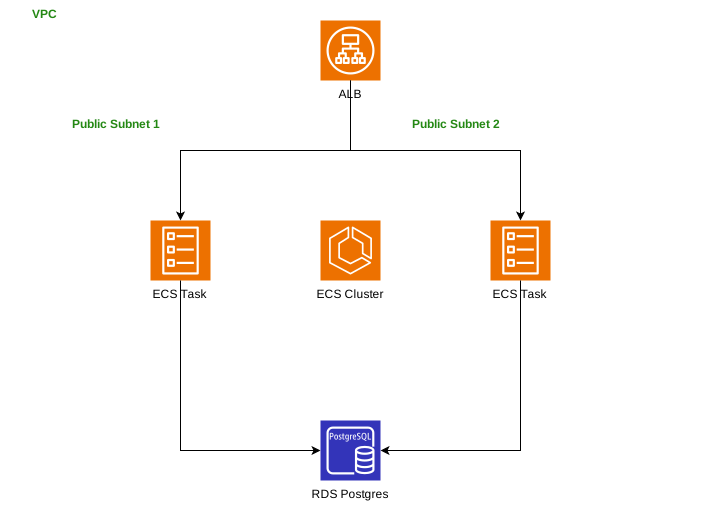
Terraform stack with a VPC, 2 public subnets, an ALB, an ECS cluster, and an RDS Postgres instance.
When to use this tool
Use it when you need a readable infrastructure diagram from Terraform resources for reviews, migrations, or architecture docs.
Use it to communicate IaC changes to teammates who do not want to inspect raw Terraform code.
Use it when you need an editable infrastructure map instead of a one-off screenshot or graph output.
Example prompts
Prompt 1
Terraform stack with a VPC, 2 public subnets, an ALB, an ECS cluster, and an RDS Postgres instance.
Prompt 2
Terraform AWS stack with VPC, public and private subnets, ALB, ECS Fargate services, RDS PostgreSQL, and S3 for assets.
Prompt 3
Terraform Azure platform with virtual network, AKS cluster, Application Gateway, Key Vault, and Cosmos DB.
Prompt 4
Multi-account Terraform architecture with shared networking, transit gateway, EKS clusters, and centralized logging account.
Prompt tips that improve results
Name the main actors, services, systems, or tables instead of describing the diagram vaguely.
Include boundaries, traffic direction, failure paths, or data stores when those details matter to the audience.
After generation, use a follow-up prompt to add labels, security controls, or a second level of detail instead of overloading the first prompt.
Good fit for technical docs
AIDrawIO is built around engineer-first diagram workflows. Generate the first version fast, keep the XML editable, and link the output into docs, reviews, runbooks, or design discussions.
Use category pages for broader discovery
If you are still deciding between diagram types, browse the broader AI diagram generator, technical diagram generator, and draw.io AI generator pages linked below.
Related resources
Go deeper with nearby tool pages, prompt libraries, examples, and guides for this diagram workflow.
Related tools
Switch to adjacent generators when you need a different level of detail or diagram style.
AWS Diagram Generator
Turn a description into a labelled AWS architecture diagram. Supports Lambda, API Gateway, DynamoDB, S3, RDS, VPCs, subnets, and more.
Architecture Diagram Generator
Generate clean, editable software and system architecture diagrams. Describe the services, boundaries, and data flows — AI handles the layout.
Network Diagram Generator
Diagram network topologies, VLANs, subnets, firewalls, routers, and connections. Great for operations runbooks.
Prompt libraries and examples
Copy proven prompts and browse concrete diagram patterns close to this workflow.
AWS Architecture Diagram Prompts
These prompts help you generate AWS diagrams faster by naming the key services, traffic paths, and boundaries clearly. Start with one, then use follow-up prompts to add subnets, security controls, or scaling detail.
VPC with Public and Private Subnets Pattern
A standard AWS network pattern with internet-facing resources in public subnets and application or database workloads in private subnets, typically duplicated across multiple availability zones for resilience.
Multi-Region Active-Active
AWS us-east-1 + eu-west-1 with Route 53, Aurora Global, and DynamoDB global tables
Guides and category pages
Learn the notation, best practices, and nearby commercial-intent pages around this diagram type.
How to Create an AWS Architecture Diagram
An AWS architecture diagram documents how your cloud infrastructure fits together — which services you use, how they connect, and where data flows. Whether you're presenting to stakeholders, onboarding a new engineer, or reviewing a system for security, a clear AWS diagram saves hours of verbal explanation.
How to Create an Azure Architecture Diagram
Azure architecture diagrams are essential for visualizing cloud solutions on Microsoft Azure. They help teams understand how App Services, SQL Databases, and Virtual Networks interact, ensuring security compliance and operational clarity.
draw.io AI Diagram Generator
AIDrawIO is built around draw.io-compatible output. Instead of generating a static image only, it creates diagrams you can open and edit in diagrams.net or keep exporting as SVG and PNG.
AI Technical Diagram Generator
AIDrawIO focuses on technical diagrams engineers actually need: architecture diagrams, UML, ERDs, sequence diagrams, infrastructure maps, and cloud designs. Prompt first, then keep refining the result as an editable diagram.
Want this for your team?
AIDrawIO Pro gives your whole team unlimited diagram generation, shared workspaces, version history, and Claude Sonnet 5 & Haiku 4.5.
See pricingOther diagram generators
Frequently asked questions
Is this useful for Terraform architecture reviews?
Yes. It helps teams turn Terraform resource descriptions into diagrams that are easier to review for topology, exposure, and dependencies.
Does the prompt need exact Terraform syntax?
No. Plain-English infrastructure descriptions often work well, though naming real resources and boundaries usually improves the result.
Is this tool really free?
Yes. You get one free preview a day with no account. Sign up for 3 free diagrams in the full editor (+1 every week), and go Pro for 60 a month with Claude Sonnet 5 and Haiku 4.5.
What diagram formats can I export?
The generated diagram is draw.io XML. Copy it and import it into draw.io or diagrams.net. Sign up to also export as SVG or PNG directly.
Which AI models are used?
Previews and the free tier run on Gemini 3.7 Flash. Pro adds Claude Sonnet 5 and Haiku 4.5.
Can I edit the generated diagram?
Copy the XML and open it in draw.io, or click "Save & Edit Diagram" to open it in AIDrawIO where you can visually edit, restyle, and re-prompt.
How do I get started?
Describe your diagram in the box above, then click Generate (or press ⌘↵). The placeholder text shows you the kind of detail that works best.
Will my prompts be used to train AI?
No. Prompts are sent directly to the AI provider and are not stored or used to train models by AIDrawIO.